Start with a copy of your file
Launch the browser editor on a desktop computer. Wait for startup to finish before opening a file. Keep an untouched copy of the original, especially when working with a PSD from another application.
For a small first test, download our 1200 × 900 practice PNG. It is original sample artwork, not a screenshot of PhotoCraft. Your image is processed on your device.
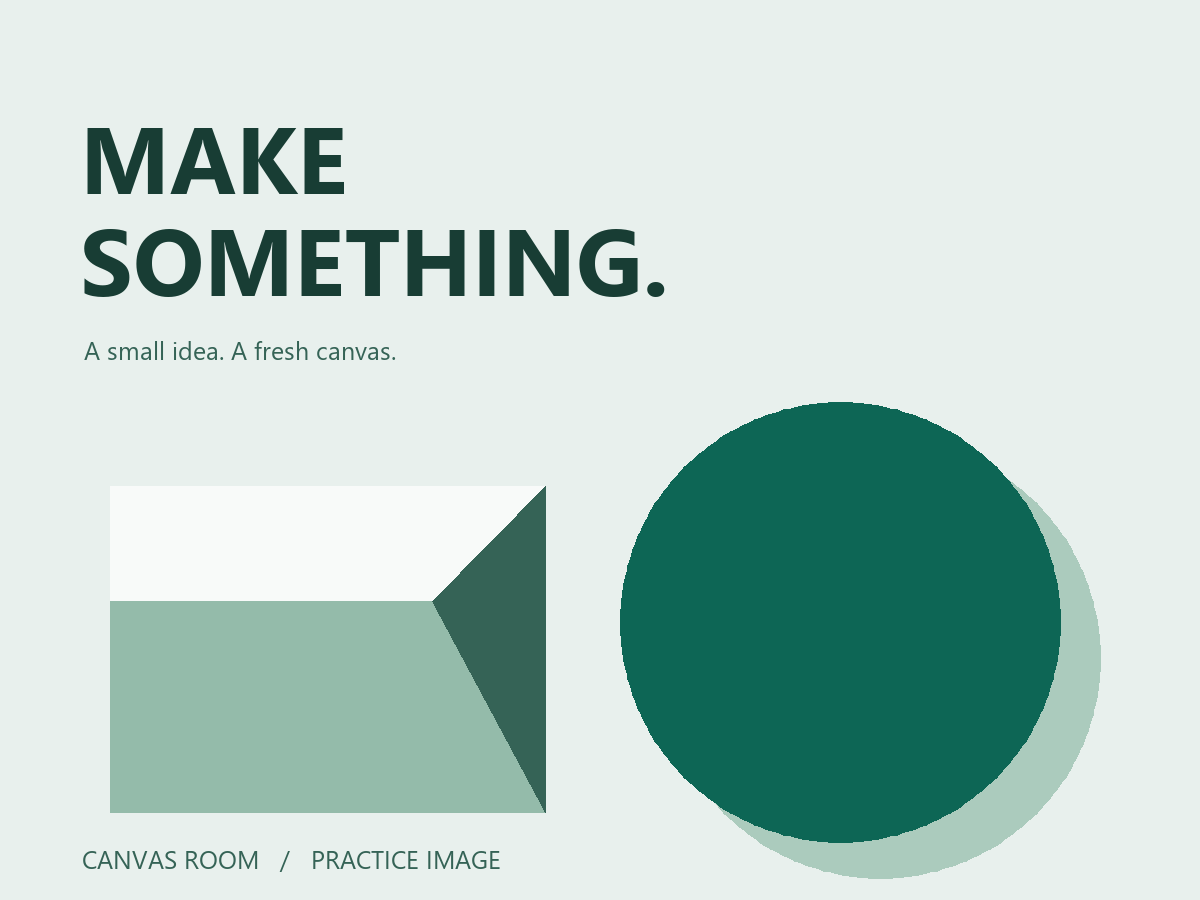
You can also download the simple raster PSD used in our test. It has one Background layer and is generated from our artwork. It does not contain a Photoshop type layer or advanced effects.
Choose a local file
- Click inside the editor so its keyboard shortcuts receive focus.
- Use File → Open, the welcome screen's Open button, or Ctrl + O on Windows.
- Select the file in the browser's file picker. You can also drop an image or PSD onto the editor.
- Allow time for decoding. A large layered document needs more memory than a small PNG.
If the browser handles a shortcut itself, use the File menu. A supported extension does not guarantee that every feature inside the file can be reproduced.
Inspect before editing
Check the width and height, visible colors and layer list. A PNG or JPEG is flattened: text baked into pixels does not become editable text. A PSD can contain raster layers, type and other structures, but compatibility depends on the features used.
For a PSD, toggle layers and compare against a reference exported by its author. Inspect gradients, text spacing, masks and effects. Read the PSD compatibility guide before replacing an important source file.
If the file does not open
Try the practice PNG first. If that opens but your file fails, the problem may be document-specific or related to memory. Confirm the original opens in the application that created it. Do not repeatedly overwrite the only copy.
If even a small image cannot open, use the loading and browser guide. Changing renderer reloads the editor, so download open work first.
Based on the official web hosting guide and v0.7.0 source documentation. Independent guidance; keep original files and verify your outputs.