Use a small practice image
Download the practice PNG, open the editor and choose File → Open. A small image helps separate an editing problem from a slow decode.
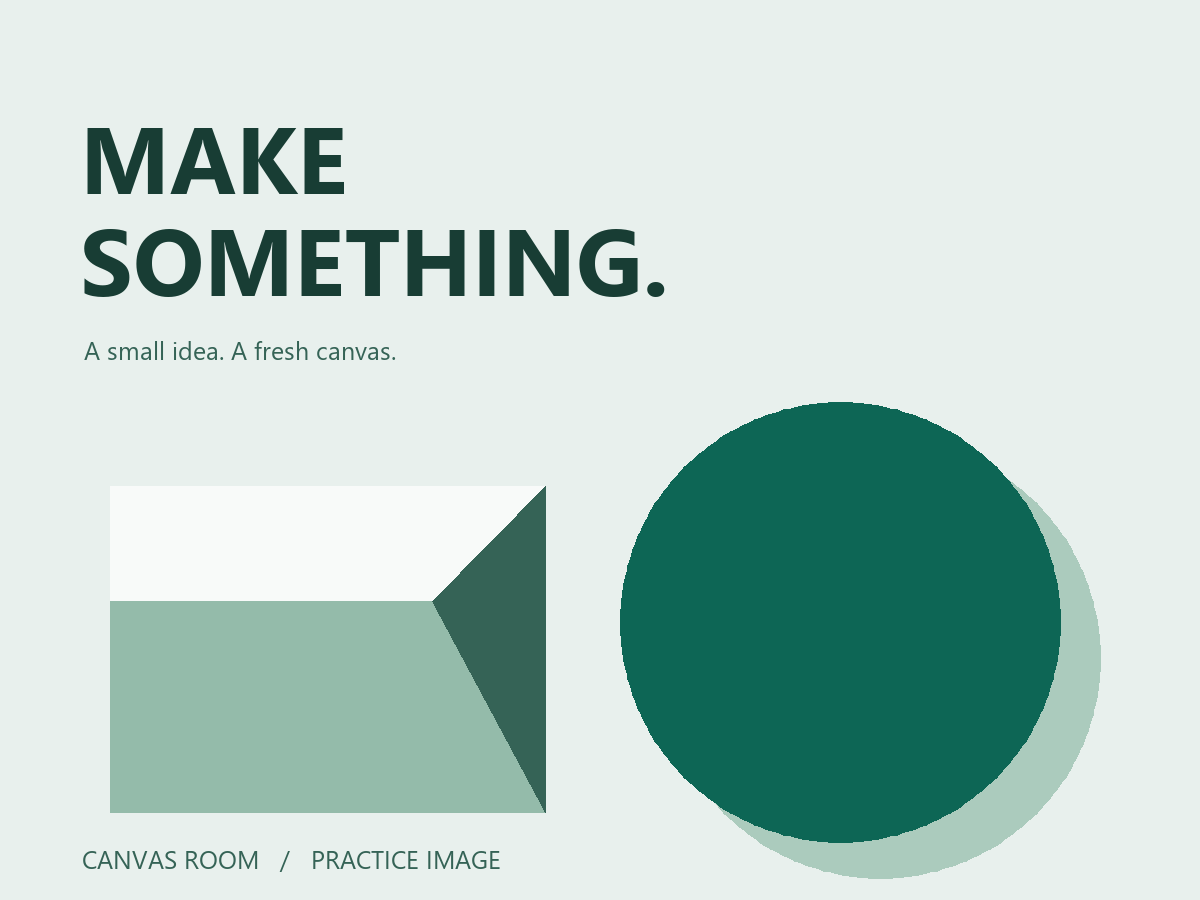
Work on a copy. The browser build has no automatic autosave or crash recovery. Closing or reloading can discard work that has not been downloaded.
Make a visible brush mark
- Choose the Brush tool in the left toolbar. Inspect its size, opacity and foreground color.
- Place a short mark on an empty part of the image. Choose a color that contrasts with the artwork.
- Use Edit → Undo or Ctrl + Z to remove the mark.
- Make the mark again. This gives you a visible change to check after saving and reopening.
This first test covers a basic pixel operation. It does not establish that every tool behaves like Photoshop.
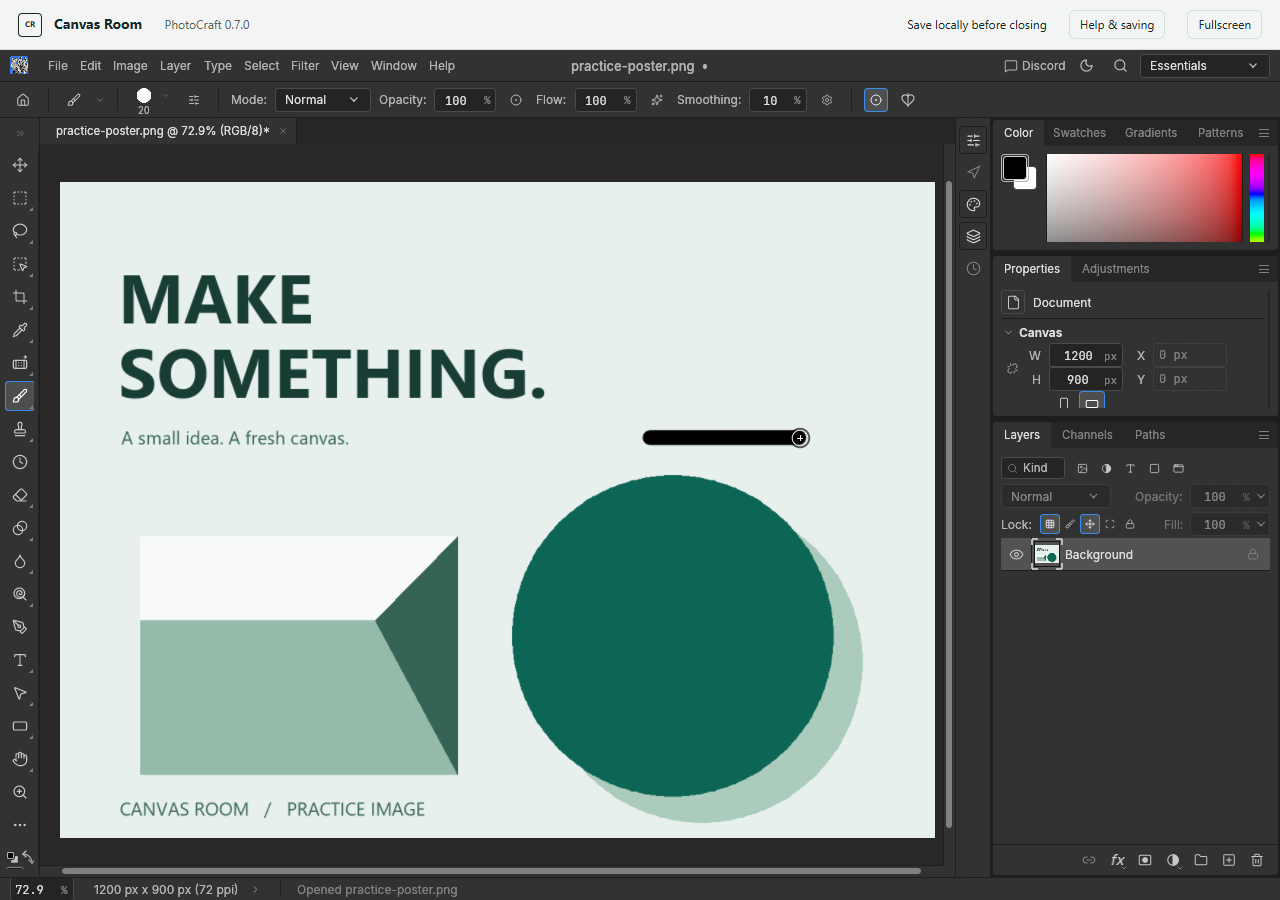
The B shortcut can cycle related tools. Check the selected tool before drawing. Ctrl + Shift + Z restored the mark in our Redo test.
Know what kind of content you have
The layer panel helps you choose what to edit. Text rendered into a PNG remains pixels. Editable text requires a type layer. Text imported from a PSD may depend on a font unavailable in the web build.
PhotoCraft includes type tools, but this host has not yet validated text creation, pasting or complex type formatting. Do not infer that an upstream text issue is fixed because the editor starts.
Save and verify the result
Follow the save and PNG export guide. Open the actual downloaded file again and check the mark, dimensions and colors.
A filename in the Downloads list is only part of verification. A complete check also confirms that the file decodes and contains the intended change.
Based on the official web hosting guide and v0.7.0 source documentation. Independent guidance; keep original files and verify your outputs.